

最经典的硬盘健康检测工具smartctl,全面掌控硬盘的状态信息
硬盘有价,数据无价。硬盘是所有数据文件资料的载体,万一硬盘坏掉了,资料可就会全丢,损失可大了。所以,我们平时使用电脑,不能忽视电脑硬盘的健康状况。
硬盘的健康状况,通常需要通过S.M.A.R.T.技术来监测,S.M.A.R.T.(Self-Monitoring, Analysis, and Reporting Technology)是现代硬盘(包括 HDD 和 SSD)内置的一种自我监测与报告技术。它通过持续记录硬盘的运行状态(如坏扇区数、通电时间、温度、重分配次数等),在潜在故障发生前发出预警。
那我们要使用什么工具来检测硬盘的健康状况呢?在Linux系统中,最经典的工具就是 smartctl ,它来自于 smartmontools 包,smartctl 支持几乎所有现代 SATA/SAS/SCSI 硬盘和 SSD。
smartmontools 是一套开源、跨平台的命令行工具集,支持 Linux(原生平台)、Windows 和 macOS等操作系统,用于监控、查询和控制硬盘的 S.M.A.R.T.功能,帮助我们提前发现硬盘故障风险,预防数据丢失。
安装 smartctl 工具 smartmontools 软件包
在Linux系统中,想要使用 smartctl,需要先安装 smartmontools 软件包,不同的Linux发行版本,安装命令略有不同,例如:
- Debian / Ubuntu / Linux Mint
sudo apt install smartmontools
- RHEL / CentOS / AlmaLinux / Rocky Linux / Fedora
sudo dnf install smartmontools
我这里要安装最新版本的smartmontools,所以使用从源码安装的方式,目前 smartmontools 最新的版本是7.5。
https://github.com/smartmontools/smartmontools/releases
安装步骤如下:
先安装编辑环境依赖:
如果是 RHEL / CentOS / AlmaLinux / Rocky Linux,执行:
sudo dnf install -y gcc gcc-c++ make autoconf automake
如果是debian/ubuntu,则执行:
sudo apt install -y gcc g++ make autoconf automake

下载smartmontools并编译安装
wget https://github.com/smartmontools/smartmontools/releases/download/RELEASE_7_5/smartmontools-7.5.tar.gz
tar zxvf smartmontools-7.5.tar.gz
cd smartmontools-7.5
./configure
make
sudo make install

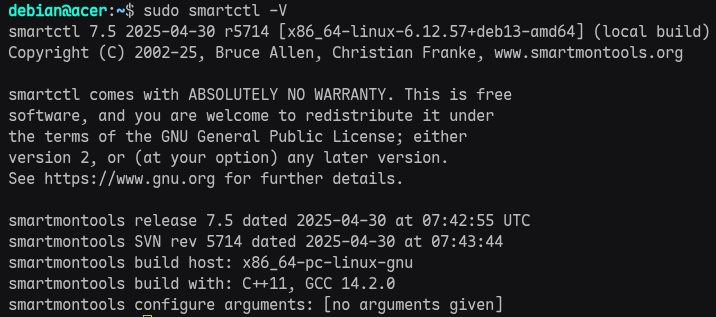
安装后查看版本
smartctl -V
下面就开始使用 smartctl 了,我这里列出几个日常典型的使用场景,让你全方位掌控硬盘的基本信息和健康状态。先执行 lsblk 命令列出电脑系统中的硬盘,如图所示,我的电脑有两个硬盘,分别是 /dev/sda和/dev/sdb。
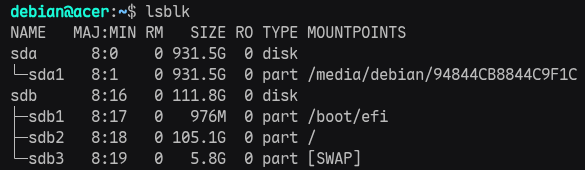
下面的操作,以 /dev/sda 这块硬盘为例。
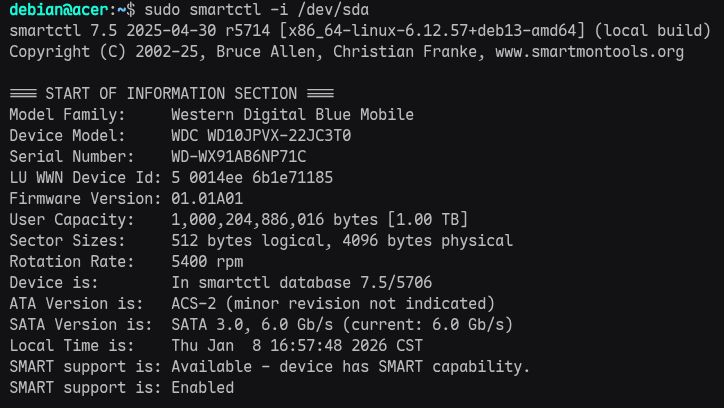
使用场景 1:查看硬盘的基本信息
sudo smartctl -i /dev/sda
使用场景 2:日常健康检查
快速健康判断
sudo smartctl -H /dev/sda
作用:这个命令会显示硬盘的 SMART 总体健康状况。
输出内容:它只会返回一个简短的健康检查结果,通常是:
PASSED:硬盘状态良好,没有发现严重问题。
FAILED:硬盘存在问题,可能已经开始出现故障。

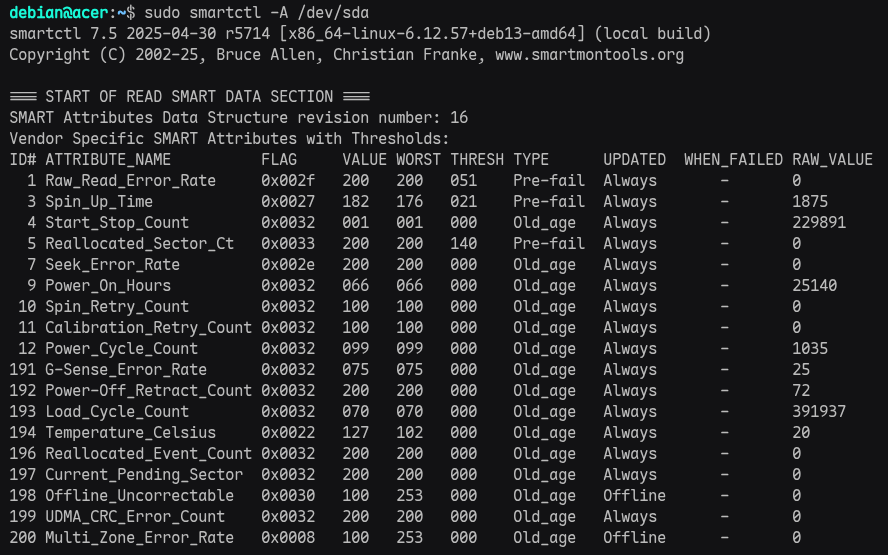
sudo smartctl -A /dev/sda
作用:这个命令会显示硬盘的 所有 SMART 属性值,即详细的 SMART 数据。
输出内容:它列出硬盘的所有 SMART 属性,如:
原始读取错误率 (Raw_Read_Error_Rate)
重新分配的扇区数 (Reallocated_Sector_Ct)
启动/停止次数 (Start_Stop_Count)
温度 (Temperature_Celsius) 等。
使用场景 3:怀疑硬盘有问题,做深度检测
长测试,启动全盘扫描(耗时几十分钟到几小时)
sudo smartctl -t long /dev/sda
短测试,快速扫描
sudo smartctl -t short /dev/sda
查看测试结果
sudo smartctl -l selftest /dev/sda
使用场景4:显示更详细的硬盘 SMART 状态信息和硬盘健康状况
sudo smartctl -a /dev/sda
或者
sudo smartctl -x /dev/sda
比如:
debian@acer:~$ sudo smartctl -a /dev/sda
smartctl 7.5 2025-04-30 r5714 [x86_64-linux-6.12.57+deb13-amd64] (local build)
Copyright (C) 2002-25, Bruce Allen, Christian Franke, www.smartmontools.org

=== START OF INFORMATION SECTION ===
Model Family:     Western Digital Blue Mobile
Device Model:     WDC WD10JPVX-22JC3T0
Serial Number:    WD-WX91AB6NP71C
LU WWN Device Id: 5 0014ee 6b1e71185
Firmware Version: 01.01A01
User Capacity:    1,000,204,886,016 bytes [1.00 TB]
Sector Sizes:     512 bytes logical, 4096 bytes physical
Rotation Rate:    5400 rpm
Device is:        In smartctl database 7.5/5706
ATA Version is:   ACS-2 (minor revision not indicated)
SATA Version is:  SATA 3.0, 6.0 Gb/s (current: 6.0 Gb/s)
Local Time is:    Thu Jan  8 16:09:52 2026 CST
SMART support is: Available - device has SMART capability.
SMART support is: Enabled

=== START OF READ SMART DATA SECTION ===
SMART overall-health self-assessment test result: PASSED

General SMART Values:
Offline data collection status:  (0x00) Offline data collection activity
                                        was never started.
                                        Auto Offline Data Collection: Disabled.
Self-test execution status:      (   0) The previous self-test routine completed
                                        without error or no self-test has ever
                                        been run.
Total time to complete Offline
data collection:                (17640) seconds.
Offline data collection
capabilities:                    (0x7b) SMART execute Offline immediate.
                                        Auto Offline data collection on/off support.
                                        Suspend Offline collection upon new
                                        command.
                                        Offline surface scan supported.
                                        Self-test supported.
                                        Conveyance Self-test supported.
                                        Selective Self-test supported.
SMART capabilities:            (0x0003) Saves SMART data before entering
                                        power-saving mode.
                                        Supports SMART auto save timer.
Error logging capability:        (0x01) Error logging supported.
                                        General Purpose Logging supported.
Short self-test routine
recommended polling time:        (   2) minutes.
Extended self-test routine
recommended polling time:        ( 198) minutes.
Conveyance self-test routine
recommended polling time:        (   5) minutes.
SCT capabilities:              (0x7035) SCT Status supported.
                                        SCT Feature Control supported.
                                        SCT Data Table supported.

SMART Attributes Data Structure revision number: 16
Vendor Specific SMART Attributes with Thresholds:
ID# ATTRIBUTE_NAME          FLAG     VALUE WORST THRESH TYPE      UPDATED  WHEN_FAILED RAW_VALUE
  1 Raw_Read_Error_Rate     0x002f   200   200   051    Pre-fail  Always       -       0
  3 Spin_Up_Time            0x0027   182   176   021    Pre-fail  Always       -       1875
  4 Start_Stop_Count        0x0032   001   001   000    Old_age   Always       -       229891
  5 Reallocated_Sector_Ct   0x0033   200   200   140    Pre-fail  Always       -       0
  7 Seek_Error_Rate         0x002e   200   200   000    Old_age   Always       -       0
  9 Power_On_Hours          0x0032   066   066   000    Old_age   Always       -       25140
 10 Spin_Retry_Count        0x0032   100   100   000    Old_age   Always       -       0
 11 Calibration_Retry_Count 0x0032   100   100   000    Old_age   Always       -       0
 12 Power_Cycle_Count       0x0032   099   099   000    Old_age   Always       -       1035
191 G-Sense_Error_Rate      0x0032   075   075   000    Old_age   Always       -       25
192 Power-Off_Retract_Count 0x0032   200   200   000    Old_age   Always       -       72
193 Load_Cycle_Count        0x0032   070   070   000    Old_age   Always       -       391937
194 Temperature_Celsius     0x0022   127   102   000    Old_age   Always       -       20
196 Reallocated_Event_Count 0x0032   200   200   000    Old_age   Always       -       0
197 Current_Pending_Sector  0x0032   200   200   000    Old_age   Always       -       0
198 Offline_Uncorrectable   0x0030   100   253   000    Old_age   Offline      -       0
199 UDMA_CRC_Error_Count    0x0032   200   200   000    Old_age   Always       -       0
200 Multi_Zone_Error_Rate   0x0008   100   253   000    Old_age   Offline      -       0

SMART Error Log Version: 1
No Errors Logged

SMART Self-test log structure revision number 1
No self-tests have been logged.  [To run self-tests, use: smartctl -t]

SMART Selective self-test log data structure revision number 1
 SPAN  MIN_LBA  MAX_LBA  CURRENT_TEST_STATUS
    1        0        0  Not_testing
    2        0        0  Not_testing
    3        0        0  Not_testing
    4        0        0  Not_testing
    5        0        0  Not_testing
Selective self-test flags (0x0):
  After scanning selected spans, do NOT read-scan remainder of disk.
If Selective self-test is pending on power-up, resume after 0 minute delay.

The above only provides legacy SMART information - try 'smartctl -x' for more
这个命令会显示硬盘的 所有 SMART 信息,包括:
硬盘的基本信息:型号、序列号、固件版本、容量等。
健康状态:例如,SMART 总体健康检查的结果。
SMART 属性:例如,读错误率、启动/停止次数、重新分配的扇区计数、温度等。
错误日志:显示硬盘是否有错误记录。
自检日志:显示硬盘是否运行过自检以及结果。
电源计数和工作时间:显示硬盘的通电时间、重启次数等。
我们还可以从 sudo smartctl -a /dev/sda 返回的信息中找到过滤出是否健康状况、是否有坏道坏扇区、通电时间、通电次数和温度等关键信息:
sudo smartctl -a /dev/sda | grep -E "SMART overall-health|Reallocated_Sector|Current_Pending_Sector|Offline_Uncorrectable|Power_O
n_Hours|Start_Stop_Count|Temperature_Celsius|Drive Temperature"

硬盘接在raid阵列卡上的案例
在一些服务器中,硬盘一般是连接到raid阵列卡的,比如下面这台戴尔R630服务器,使用了戴尔的阵列卡DELL or MegaRaid controller,需要先执行 sudo smartctl --scan 这条命令以列出连接上该RAID 控制器上所有可以通过 SMART 工具访问的物理磁盘:
debian@debian:~$ sudo smartctl --scan
返回如下信息:
/dev/sda -d scsi # /dev/sda, SCSI device
/dev/sdb -d scsi # /dev/sdb, SCSI device
/dev/bus/0 -d megaraid,0 # /dev/bus/0 [megaraid_disk_00], SCSI device
/dev/bus/0 -d megaraid,1 # /dev/bus/0 [megaraid_disk_01], SCSI device
/dev/bus/0 -d megaraid,2 # /dev/bus/0 [megaraid_disk_02], SCSI device
/dev/bus/0 -d megaraid,3 # /dev/bus/0 [megaraid_disk_03], SCSI device
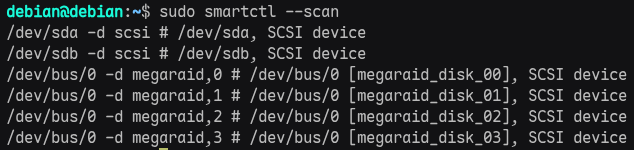
解释一下:
这里的 /dev/sda 和 /dev/sdb 是 RAID 控制器提供的 逻辑卷(virtual disks),不是物理硬盘,也不是直通设备。
从上面返回的信息看,/dev/bus/0 RAID 控制器接了4个硬盘,其设备标识符分别是megaraid,0、megaraid,1、megaraid,2、megaraid,3。
由于 /dev/bus/0 不是一块硬盘,而是一个 RAID 控制器,所以在执行 smartctl 命令对硬盘进行测试时,需要加上参数 -d 来指定RAID 控制器后面所连接的某一块硬盘。比如查看“megaraid,0”这块硬盘的信息:
sudo smartctl -i -d megaraid,0 /dev/bus/0

又比如查看“megaraid,3”这块硬盘的信息:
sudo smartctl -i -d megaraid,3 /dev/bus/0
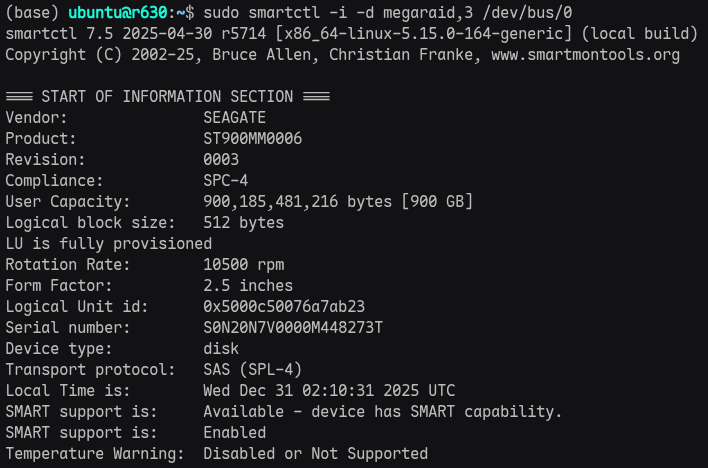
短测试:
sudo smartctl -t short -d megaraid,1 /dev/bus/0
长测试:
sudo smartctl -t long -d megaraid,1 /dev/bus/0

查看测试结果:
sudo smartctl -l selftest -d megaraid,1 /dev/bus/0
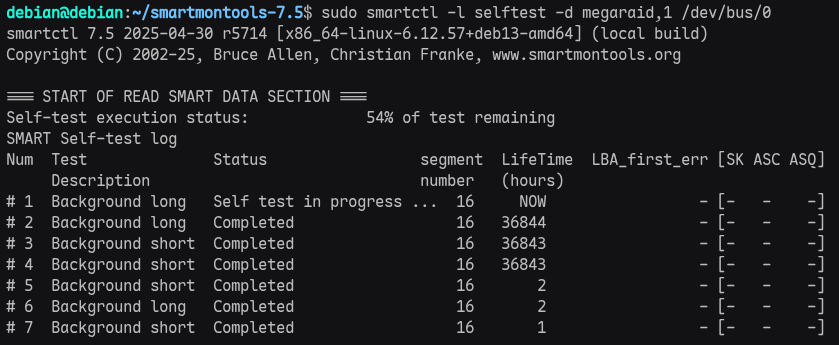
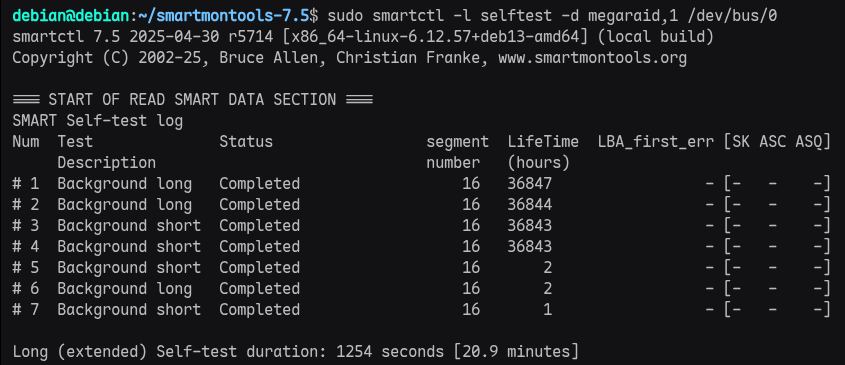
从上图中返回的信息可见,最新的一次长测试(#1)是正常的。
Test Description: Background long → 这是一次完整的长自检(Extended Self-test),由 MegaRAID 控制器在后台执行。
Status: Completed → 成功完成,没有中断或失败。
LBA_first_err: - → 未检测到任何读写错误(如果有坏道或介质错误,这里会显示第一个出错的 LBA 地址)。
\[SK ASC ASQ\]: \[- - -\] → 无 SCSI 错误码,进一步确认无 I/O 故障。
又比如查看 MegaRAID 控制器后面连接的“megaraid,1”这块硬盘完整的 SMART 信息:
sudo smartctl -a -d megaraid,1 /dev/bus/0
返回信息如下:
smartctl 7.5 2025-04-30 r5714 [x86_64-linux-6.12.57+deb13-amd64] (local build)
Copyright (C) 2002-25, Bruce Allen, Christian Franke, www.smartmontools.org

=== START OF INFORMATION SECTION ===
Vendor:               FUJITSU
Product:              MBE2147RC
Revision:             D906
Compliance:           SPC-3
User Capacity:        146,815,733,760 bytes [146 GB]
Logical block size:   512 bytes
Rotation Rate:        15000 rpm
Form Factor:          2.5 inches
Logical Unit id:      0x500000e11a13b4d0
Serial number:        D304PC60N9AU
Device type:          disk
Transport protocol:   SAS (SPL-4)
Local Time is:        Thu Jan  8 03:01:15 2026 EST
SMART support is:     Available - device has SMART capability.
SMART support is:     Enabled
Temperature Warning:  Disabled or Not Supported

=== START OF READ SMART DATA SECTION ===
SMART Health Status: OK

Current Drive Temperature:     22 C
Drive Trip Temperature:        65 C

Accumulated power on time, hours:minutes 36848:18
Manufactured in week 26 of year 2012
Specified cycle count over device lifetime:  50000
Accumulated start-stop cycles:  102
Elements in grown defect list: 0

Error counter log:
           Errors Corrected by           Total   Correction     Gigabytes    Total
               ECC          rereads/    errors   algorithm      processed    uncorrected
           fast | delayed   rewrites  corrected  invocations   [10^9 bytes]  errors
read:          0       32        32        32         34      37322.328           0
write:         0     1051      1051      1051       1477      15166.799           0
verify:        0       14        14        14         14      18141.253           0

Non-medium error count:       74

SMART Self-test log
Num  Test              Status                 segment  LifeTime  LBA_first_err [SK ASC ASQ]
     Description                              number   (hours)
# 1  Background long   Completed                  16   36847                 - [-   -    -]
# 2  Background long   Completed                  16   36844                 - [-   -    -]
# 3  Background short  Completed                  16   36843                 - [-   -    -]
# 4  Background short  Completed                  16   36843                 - [-   -    -]
# 5  Background short  Completed                  16       2                 - [-   -    -]
# 6  Background long   Completed                  16       2                 - [-   -    -]
# 7  Background short  Completed                  16       1                 - [-   -    -]

Long (extended) Self-test duration: 1254 seconds [20.9 minutes]
通过以上介绍,我们可以看到,smartctl 作为一个强大而免费的开源工具,能帮助我们轻松监控硬盘的健康状态,无论你是普通用户还是服务器管理员,都能及早发现潜在问题——比如坏扇区增加、温度过高或错误率上升,从而避免突发故障导致的数据灾难。